Usage Guide
glTF overview
Khronos have released a PDF going over all concepts of the glTF 2.0 standard, with visual representations. This should give a good understanding of how everything works together. It is also available as an image:
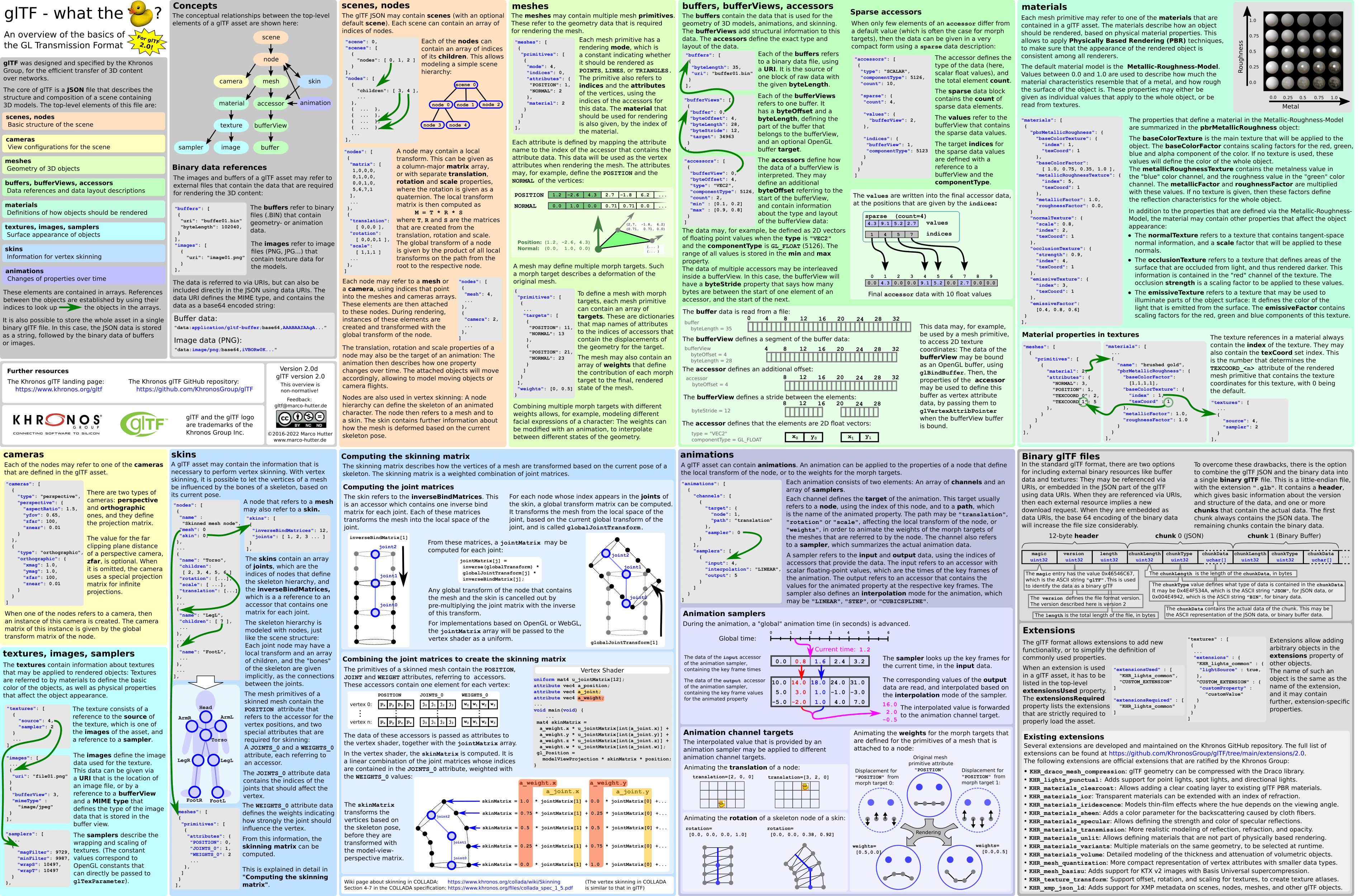
Source overview
To give a quick overview of the source file structure for fastgltf, this quick list should help:
fastgltf/core.hpp: This will be the main file you include, which brings in everything you need. This contains the parser, the exporter, and all other required functionality.fastgltf/types.hpp: This header includes only the POD types and enumerations for glTF data.fastgltf/tools.hpp: Optional header, which provides the accessor tools and node transform utilities.fastgltf/base64.hpp: Contains function definitions for the optimised base64 decoding functions, which use SIMD intrinsics, if you need them elsewhere.fastgltf/math.hpp: The custom math library which contains all functionality necessary for working with glTF assets.fastgltf/glm_element_traits.hpp: This header defines element traits used for the accessor tools for all relevant glm types.fastgltf/util.hpp: Simply a utility header including various macros and functions used in all headers and source files. You will usually not need to include this yourself, unless you use the functionality in your own project elsewhere.
How to load glTF files for parsing
Before you can have the fastgltf::Parser object parse the glTF, you need to load it into memory.
The loadGltf functions all take a reference to a fastgltf::GltfDataGetter, which defines a common interface for reading memory.
fastgltf provides some implementations for this interface natively, which can be used out of the box.
Most notably, fastgltf::GltfDataBuffer and fastgltf::GltfFileStream.
GltfDataBuffer
This basic class essentially holds a buffer with the contents of a glTF.
This buffer can be created and filled using the factory constructors.
These constructors return an Expected<T> which holds the buffer, as well as an error, if one occurred.
Be sure to always check if any of these functions returned an error.
auto gltfFile = fastgltf::GltfDataBuffer::FromPath("./asset.gltf");
auto gltfData = fastgltf::GltfDataBuffer::FromBytes(bytes.data(), bytes.size());
GltfFileStream
GltfFileStream is a basic wrapper around std::ifstream, implementing the fastgltf::GltfDataGetter interface.
The usage of this class is essentially just a cut down version of the stdlib class.
fastgltf::GltfFileStream fileStream("./asset.gltf");
if (!fileStream.isOpen())
    return false;
AndroidGltfDataBuffer
This is essentially the same interface as fastgltf::GltfDataBuffer, but additionally supports loading APK assets.
See this section for more information.
Iterating over the node hierarchy
fastgltf provides a simple way to iterate over the node hierarchy of a glTF scene, provided in the fastgltf/tools.hpp header.
The following example illustrates how to simply iterate over this hierarchy using fastgltf,
which additionally provides the transform matrix for each node.
fastgltf::iterateSceneNodes(asset, sceneIndex, fastgltf::math::fmat4x4(),
                            [&](fastgltf::Node& node, fastgltf::math::fmat4x4 matrix) {
    if (node.meshIndex.has_value()) {
        drawMesh(viewer, *node.meshIndex, matrix);
    }
});
The fmat4x4 which is passed into the function is an initial transform matrix.
Normally, this is just an identity matrix. However, this provides the possibility to transform the entire scene.
Also, fastgltf provides a single function for getting the local transform matrix for each node. This may be useful for implementing your own iteration function.
auto mat4 = fastgltf::getTranformMatrix(node);
How to read glTF extras
The following code snippet illustrates how to load glTF extras using fastgltf.
fastgltf doesn’t load extras itself and also doesn’t store them in the Asset data structure.
Instead, you are expected to store any data from extras yourself in a matching data structure.
The callback provides you with the category of the object where the Parser found extras for, and its index.
Lastly, you have to deserialize the JSON data yourself using the simdjson API.
You can find more information about how simdjson works and how to use it here.
auto extrasCallback = [](simdjson::dom::object* extras, std::size_t objectIndex, fastgltf::Category category, void* userPointer) {
    if (category != fastgltf::Category::Nodes)
        return;
    auto* nodeNames = static_cast<std::vector<std::string>*>(userPointer);
    nodeNames->resize(fastgltf::max(nodeNames->size(), objectIndex + 1));

    std::string_view nodeName;
    if ((*extras)["name"].get_string().get(nodeName) == simdjson::SUCCESS) {
        (*nodeNames)[objectIndex] = std::string(nodeName);
    }
};

std::vector<std::string> nodeNames;
fastgltf::Parser parser;
parser.setExtrasParseCallback(extrasCallback);
parser.setUserPointer(&nodeNames);
auto asset = parser.loadGltfJson(&jsonData, materialVariants);
How to export glTF assets
fastgltf provides two interfaces for exporting and writing glTF files.
The fastgltf::Exporter interface effectively serializes a fastgltf::Asset into a JSON string,
but also supports creating binary glTFs in-memory. This interface does not write any data to disk.
fastgltf::Exporter exporter;
auto exported = exporter.writeGltfJson(asset, fastgltf::ExportOptions::None);
The fastgltf::FileExporter interface inherits from the aforementioned class and additionally also writes the constructed glTF file to disk.
It will also write all of the buffers or images to disk using the folder of the glTF file as its root.
The buffer and image root folders relative to the glTF can be specified with fastgltf::Exporter::setBufferPath and fastgltf::Exporter::setImagePath, respectively.
fastgltf::FileExporter exporter;
auto error = exporter.writeGltfJson(asset, "export/asset.gltf", fastgltf::ExportOptions::None);
Additionally, fastgltf::Exporter also supports writing extras:
auto extrasWriteCallback = [](std::size_t objectIndex, fastgltf::Category category,
                               void *userPointer) -> std::optional<std::string> {
     if (category != fastgltf::Category::Nodes)
         return std::nullopt;

     auto *nodeNames = static_cast<std::vector<std::string>*>(userPointer);
     if (objectIndex >= nodeNames->size())
         return std::nullopt; // TODO: Error?
     return {std::string(R"({"name":")") + (*nodeNames)[objectIndex] + "\"}"};
};

std::vector<std::string> nodeNames;
fastgltf::Exporter exporter;
exporter.setUserPointer(&nodeNames);
exporter.setExtrasWriteCallback(extrasWriteCallback);
auto exported = exporter.writeGltfJson(asset, fastgltf::ExportOptions::None);
How to use fastgltf on Android
fastgltf supports loading glTF files which are embedded as an APK asset natively.
However, you first need to make sure to tell fastgltf about your AAssetManager:
auto manager = AAssetManager_fromJava(env, assetManager);
fastgltf::setAndroidAssetManager(manager);
After this call LoadExternalBuffers and LoadExternalImages behave as expected for embedded glTFs.
The glTF file itself, however, needs to be loaded using a special function:
auto jsonData = fastgltf::AndroidGltfDataBuffer::FromAsset(filePath);
if (jsonData.error() != fastgltf::Error::None)
    return false;
Note
Always check the return value from the factory functions from classes inheriting fastgltf::GltfDataGetter,
since they return an Expected<T> which could possibly contain an error.
How to load data from accessors
fastgltf ships with tools for reading data from accessors which greatly reduce the complexity of using accessors. They also handle various edge cases from the glTF spec, which usually would not be covered. The Accessor tools chapter describes everything you need to know about how to use them.